/ 06
Block Patterns
The native Gutenberg workflow: finding, inserting and editing the bundled patterns and block styles.
This page covers Fieldcraft's default, native workflow — no page builder, no visual drag-and-drop canvas required. Every marketing section you see on the demo pages is either rendered automatically by the theme (the home page and the site-wide closer/ring bands) or available as a native WordPress block pattern you insert into the block editor like any other block.
Prefer a page builder instead? Fieldcraft also supports Elementor (free, one-click install), WPBakery Page Builder and Divi Builder (both paid third-party plugins you supply your own license for) as optional alternatives to the block-pattern workflow on this page — every section listed below is also available as a widget/element/module in each. See Getting Started → Choose your builder.
Finding the patterns
- Open any page or post in the block editor.
- Click the Toggle block inserter icon (the + button, top-left).
- Switch to the Patterns tab and find the Fieldcraft category.
- Click a pattern to insert it at your cursor position.
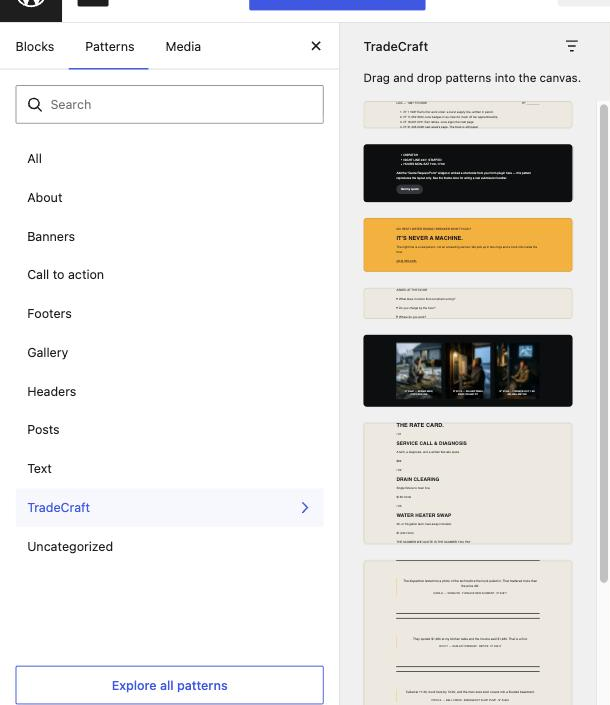
The nine bundled patterns
Editing an inserted pattern
Once a pattern is inserted, it becomes ordinary blocks on your page — click into any heading or paragraph and edit the text directly, just like any other block. Patterns are a starting point, not a locked component; nothing keeps you from adding, removing or rearranging the blocks inside one after you insert it.
- Insert a pattern (see above), e.g. Numbered service rows.
- Click directly into any heading or paragraph inside it and start typing to replace the placeholder copy.
- Click a photo inside the pattern (e.g. in the Job-file gallery grid) and use the block toolbar's Replace button to swap in your own image from the Media Library.
- Select the outer Group block (click the pattern's edge, or use the block breadcrumb at the bottom of the editor) if you want to duplicate, move or delete the whole section at once.

Block styles
Beyond the nine patterns, Fieldcraft also registers three block styles — optional visual variants of core blocks, selectable from the block's Styles panel in the editor sidebar:
- Select any Heading, Group or Pullquote block (either one you added yourself, or one inside an inserted pattern).
- Open the block settings sidebar on the right (click the gear/settings icon if it's hidden) and find the Styles panel near the top.
- Click Fieldcraft Display (Heading), Fieldcraft Dark Band (Group) or Fieldcraft Mono (Pullquote) to apply it — the canvas updates immediately.
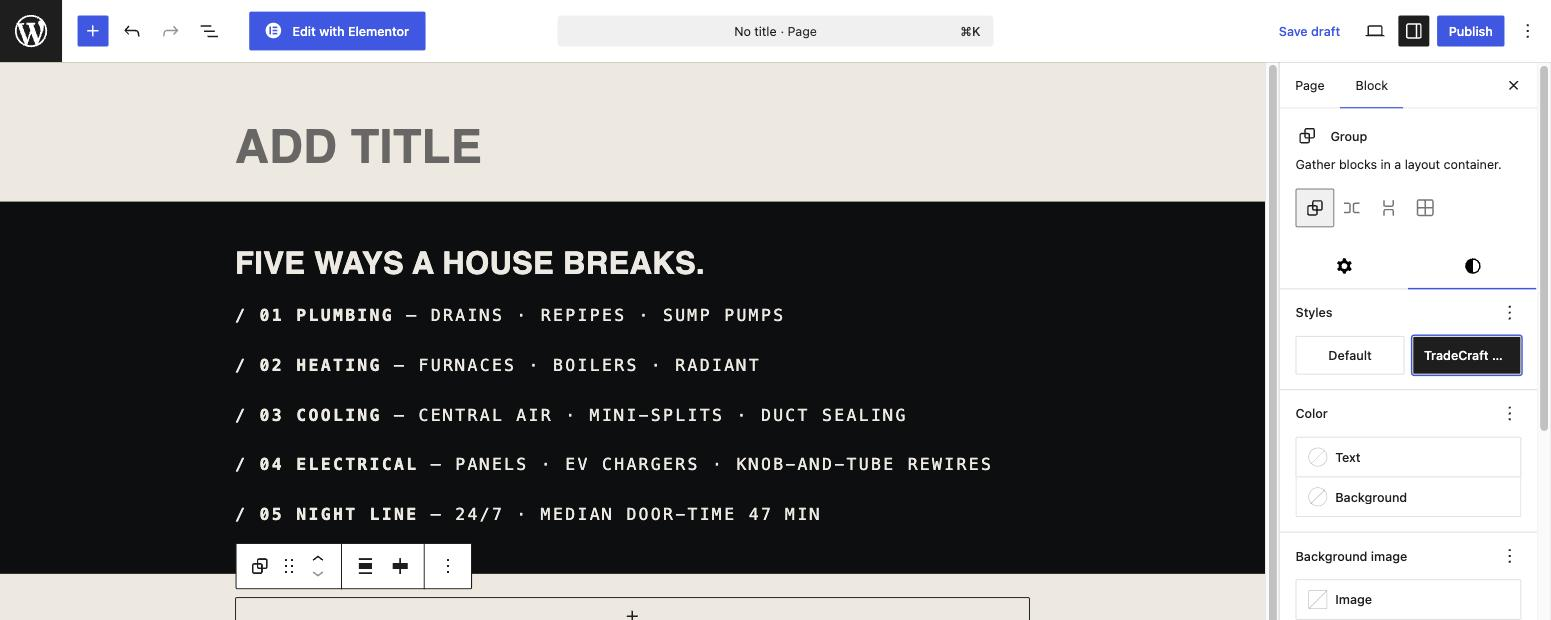
Because everything is native Gutenberg, patterns and block styles both survive theme updates, work in the child theme, and never require a plugin.