/ 02
Demo Content
What ships in your download, and how to import one of the 8 Fieldcraft demo sites without leaving the setup wizard.
8 demos, one download
Fieldcraft ships 8 complete, one-click-importable demos — one flagship, all-trades demo plus 7 single-trade variants. Every demo shares the exact same 12 pages (Home plus 11 interior pages) and design system; only the brand name, accent color and home-page copy differ. Import one demo — the one that matches your trade — and its copy and accent color become your site's starting point.
| Demo | Trade |
|---|---|
| Ironhouse Mechanical | Flagship — all trades (mechanical / plumbing / heat / power) |
| Millrace | Plumbing |
| Northgale | Heating & Cooling (HVAC) |
| Copperline | Electrical |
| Ridgeline | Roofing |
| Punchline | Handyman / home repair |
| Broadcoat | Painting |
| Marrowbone | Landscaping / lawn |
Each demo has its own preview thumbnail in the picker, so you can see the brand and accent color before you import.
All 8 packages above import the theme's native Gutenberg pages, patterns and Customizer settings — this is true regardless of which builder you later choose in the setup wizard. If you switch to Elementor, the flagship demo also has real Elementor content for its Home page; the other 7 variants and WPBakery Page Builder / Divi Builder have no matching builder-native demo package yet — you'd build pages from a blank canvas using that builder's Fieldcraft widgets/elements/modules instead. See Getting Started → Choose your builder.
Importing your demo, step by step
Fieldcraft ships all 8 demo packages — content, widgets and Customizer settings for
each — inside the companion plugin, Fieldcraft Core
(Plugins/fieldcraft-core.zip in your download). The free
One Click Demo Import (OCDI) plugin does the underlying work, but you never open
OCDI's own admin screen — the setup wizard drives the whole import in place:
- Install & activate the theme and the companion plugin, then complete Step 1 (Install Plugins) of the setup wizard so One Click Demo Import is active. See Getting Started → Step 1.
- On the wizard's Import Demo Data screen (Step 3), click the demo card that matches your trade — see the table above for what each name covers.
- Click Import selected demo.
- Watch the in-page progress bar move through Importing content…, Applying colors and brand settings… and Finishing up…, ending with Import complete! Don't close the tab mid-import.
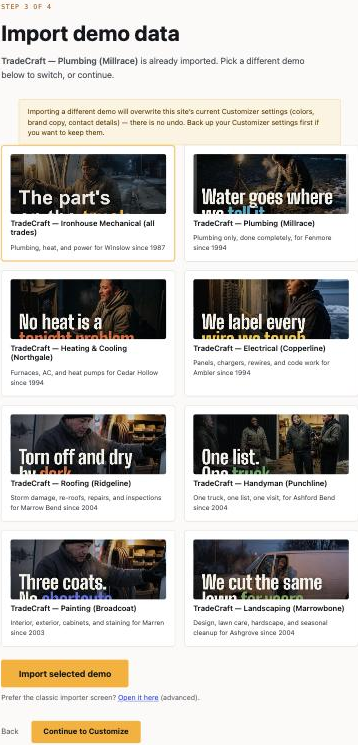
Each card is a complete, independent site package. Import the single demo you want to build on — importing a second demo afterwards re-runs the same after-import steps (front page, blog page, menus) against the new content and overwrites your current Customizer settings with no undo. Treat demo import as a one-time choice made early in setup, before you've customized much.
The import pulls three files bundled inside the companion plugin's sample-data/
folder for your chosen demo — contents.xml (pages, posts, images),
widgets.wie (footer widgets) and customizer.dat (every Customizer
option, including that demo's brand name, accent color and Typography/Buttons/Layout choices)
— and then runs an after-import step that automatically:
- sets your static front page and blog page,
- assigns all four menu locations (Primary, Footer — Trades, Footer — Company, Legal),
- and flushes permalinks so every imported page resolves.
You never edit or need to find these files yourself — the wizard reads them straight out of the companion plugin. If the Import Demo Data step shows no demo cards, the OCDI plugin isn't installed/active yet; go back to Step 1 and install it.
Prefer OCDI's own classic importer screen instead of the in-wizard picker? A “Open it here” link at the bottom of the wizard's demo step opens One Click Demo Import's own reparented admin page as an advanced fallback.
What's bundled
- Nine ready-made block patterns (Company timeline, Quote request form, Emergency CTA band, FAQ accordion, Job-file gallery grid, Flat-rate pricing table, Review wall, Numbered service rows, Trust strip) under the Fieldcraft pattern category in the block inserter — see Block Patterns for the full list.
- The full home-page composition, pre-built as template parts — it renders automatically the moment the theme is active, even before you import anything.
- Three block styles for core blocks (a display heading style, a dark-band group style and a mono pullquote style — Fieldcraft Display, Dark Band and Mono) that match the demo's look.
The home page needs no import to look right
Even without running the demo import, if your site's front page in Settings → Reading is "Your latest posts" or a static page with empty content, Fieldcraft renders the full demo composition (hero, trust strip, services, manifesto, ledger, emergency band, process, job files, reviews, team, notes teaser) automatically. Turn any of those sections off in Customize → Home Sections — see Customizer → Home Sections. Running the demo import (above) still sets the correct front page for you, so this matters mainly if you skip the import.
If you create a real page and give it content, and set that as your front page, Fieldcraft shows your content instead of the demo composition — so you can fully replace the home page with your own block-built layout whenever you're ready.
Rebuilding or adding an inner page
After the demo import, every inner page (About, Services, Contact, Gallery, Reviews, FAQ, Pricing, Service Areas, Blog) already exists with its page template assigned. To add a new page of the same kind, or to rebuild one from scratch:
- Go to Pages → Add New.
- In the block editor's sidebar, open Page → Template and assign the matching template (see Page Templates for which template goes with which page).
- Build the page from core Gutenberg blocks plus the Fieldcraft patterns — the exact block recipe for each page lives in Page Templates; treat that page as your demo-content reference.
Demo photography
All demo photography is original AI-generated artwork owned outright by Fieldcraft (see Credits & Licenses). Replace any image by uploading your own through the Media Library and swapping it into the relevant template part, pattern or featured image — there is no license restriction stopping you from removing the demo photos entirely.