/ 05
Page Templates
Fieldcraft ships 11 ready-made PHP page templates — recreate every demo interior page by creating a Page and assigning its Template.
Fieldcraft ships 11 PHP Page Templates: eight for the interior demo pages (Services, Contact, Service Areas, Gallery, Reviews, Pricing, FAQ and About), Privacy Policy and Terms of Service (covered below), plus a Maintenance / Coming Soon template covered separately. Each of these templates automatically renders that page's full composed layout — hero, sections, closer and service-area ring where relevant — exactly like the live demo. You don't build these pages from blocks: you create a normal WordPress page, give it a title, and assign the matching template from the Template dropdown in the Page panel. That's the whole workflow.
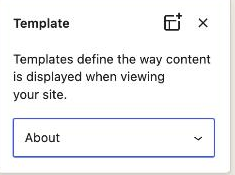
For any of the templated interior pages: Pages → Add New, give it a title, then in the right-hand Page panel open Template and pick the matching entry from the list below. Publish — the page renders fully composed, with no block editing required. The quote-form closer and the service-area ring strip appear automatically at the bottom of every one of these templates too, controlled site-wide by the Closer & Service Area Customizer toggles, so you never add those two elements to the page content yourself.
Open the page in the block editor, then look in the settings sidebar (click the gear icon top-right if it's hidden) under the Page tab. The Template field is a dropdown of every Page Template the active theme ships — Fieldcraft adds its 11 to that list alongside the WordPress default "Default template" entry.
Home
Nothing to build — see Site Setup → Front page setup. It's a template-part composition controlled entirely by the Home Sections toggles (not one of the eight page templates below — the front page is set separately in Settings → Reading).
About
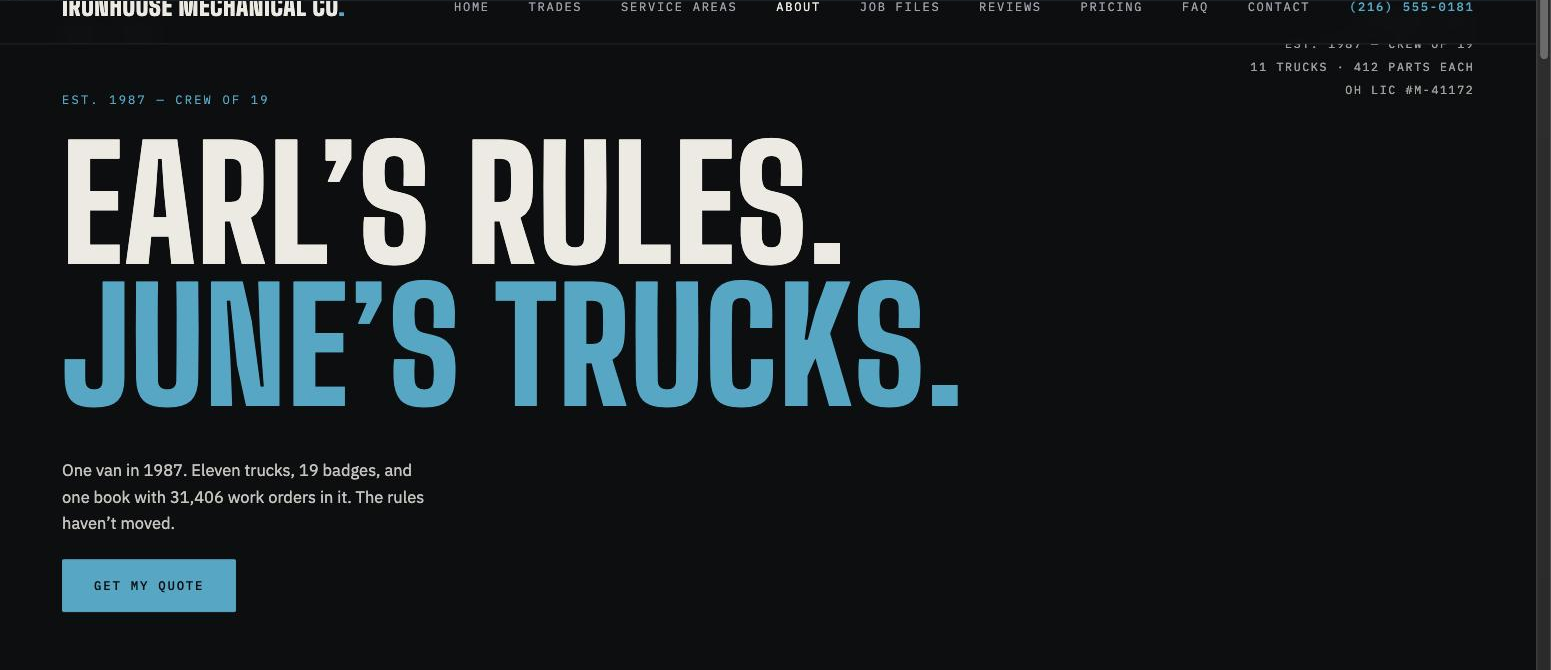
- Create a Page titled "About", then assign Template → About.
- Publish. The template renders the hero, story split, timeline log, ledger reprise, reviews reprise and crew band automatically — add your own text/images for those sections by editing the theme's demo content strings, or leave the demo copy as a starting point and swap it via the block editor for any part that pulls from the page's own content field.
Or customize with patterns: insert the Company timeline (log)
pattern (fieldcraft/about-timeline) or Trust / credentials
strip pattern into the page's own content area if you want to add extra sections beyond
what the template already composes — see Block Patterns.
Services
- Create a Page titled "Services", then assign Template → Services (Trades).
- Publish. The template renders the page hero, numbered trade rows, a proof band and a closing strip automatically, matching the demo Services index page.
Or customize with patterns: insert the Numbered service rows or Emergency CTA band pattern into the page's own content area for extra rows or a second call-to-action — see Block Patterns.
Service (single trade)
Fieldcraft doesn't ship a dedicated single-trade template — each trade sub-page (e.g. "Heating", "Plumbing") is a normal page you build with core Gutenberg blocks, since every business names and orders its trades differently:
- Page hero: Heading block (your headline) + Paragraph (sub-line), naming the trade. Fieldcraft's page-hero styling applies automatically to the first heading/paragraph pair at the top of any page that isn't using one of the eight templates above.
- A feature Image block (wide/16:9) under the hero.
- Body copy: what the service covers, using Paragraph and Heading blocks per sub-topic.
- A "sibling trades" rail: a Columns block linking to your other service pages.
- Insert the Trust / credentials strip pattern before the page ends — see Block Patterns.
Service Areas
- Create a Page titled "Service Areas", then assign Template → Service Areas.
- Publish. The template renders the hero, a ring-band image, a town-by-town ledger and the night-line reference automatically, matching the demo Service Areas page. Edit the towns list itself in Customizer → Closer & Service Area → Service-area towns.
Or customize with patterns: insert the Trust / credentials strip pattern into the page's own content area for an extra credentials line — see Block Patterns.
Gallery
- Create a Page titled "Gallery", then assign Template → Gallery (Job Files).
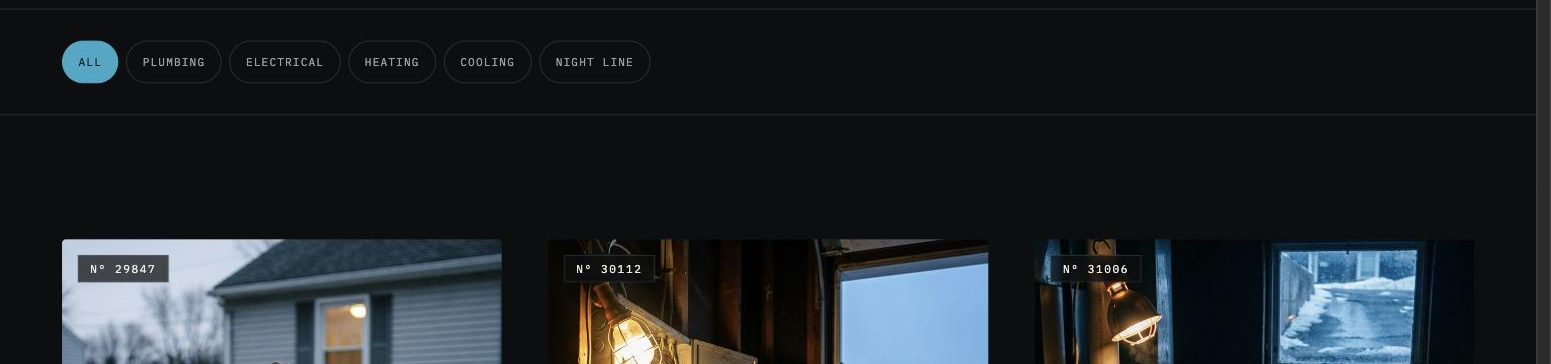
- Publish. The template renders the hero, a filter rail, the job-photo grids and a receipts checkpoint automatically, matching the demo Gallery page.
Or customize with patterns: insert the Job-file gallery grid
pattern (fieldcraft/gallery-grid) into the page's own content area for an
extra grid of before/after job photos, or use the core Gallery block and caption
each image with a short job reference — see Block
Patterns.
Reviews
- Create a Page titled "Reviews", then assign Template → Reviews.
- Publish. The template renders the hero, a stats strip, two review walls and a "the 31" statement band automatically, matching the demo Reviews page.
Or customize with patterns: insert the Review wall pattern
(fieldcraft/review-wall) into the page's own content area for an extra row
of pull-quote review cards, or build your own with repeated Group blocks (or the Pullquote block,
styled with the Fieldcraft Mono block style) — see
Block Patterns → Block styles.
Contact
- Create a Page titled "Contact", then assign Template → Contact.
- Publish. The template renders a compact hero, the contact info + quote form + map, a before-you-call FAQ and the night-line reference automatically, matching the demo Contact page. Your contact details come from Customizer → Contact & Identity.
Or customize with patterns: insert the Quote request form
(contact) pattern (fieldcraft/contact-form) into the page's own
content area if you want a second copy of the contact info + form markup — see
Block Patterns.
FAQ
- Create a Page titled "FAQ", then assign Template → FAQ.
- Publish. The template renders the hero and a grouped FAQ accordion (Money / The Visit / The Guarantee + The Ring) plus a "still have questions" statement automatically, matching the demo FAQ page.
Or customize with patterns: insert the FAQ accordion pattern
(fieldcraft/faq-accordion) into the page's own content area for extra
question/answer groups, or build your own from the core Details block — see
Block Patterns.
Pricing
- Create a Page titled "Pricing", then assign Template → Pricing.
- Publish. The template renders the hero, the flat-rate card, a proof band and a pricing FAQ automatically, matching the demo Pricing page.
Or customize with patterns: insert the Flat-rate pricing table
pattern (fieldcraft/pricing-table) into the page's own content area for an
extra rate card, or use a core Table block — see Block
Patterns.
Blog (index)
No page building required — this is the theme's built-in post archive. Set Settings → Reading → Posts page to a page (create one named "Blog"/"Notes") if you want a dedicated URL, or just link to your posts page. See Blog Setup for the full walkthrough.
Blog (single post)
Also built in — write and publish a normal post in Posts → Add New. Set a featured image for the feature band at the top of the article. See Blog Setup.
404
The 404 page is a built-in template (404.php) — nothing to build.
Maintenance / Coming Soon
Template → Maintenance / Coming Soon — reproduces the same amber-on-dark coming-soon composition (kicker, heading, message, coordinates) as the HTML template's coming-soon page. You normally don't assign it to a page yourself: turn on Appearance → Customize → Fieldcraft Options → Maintenance Mode → Enable maintenance / coming-soon mode instead, and every front-end request from a logged-out visitor is served this template automatically, site-wide, while you finish setup — logged-in editors always see the real site. See Customizer → Maintenance Mode for the heading/message fields. Manually assigning the template to a page instead of using the toggle also works if you want a single standalone coming-soon URL, but the toggle is the normal way to gate the whole site.
Privacy Policy & Terms of Service
- Create a Page titled "Privacy Policy", then assign Template → Privacy Policy. Create a second Page titled "Terms of Service", then assign Template → Terms of Service.
- Publish both. Each template renders a compact hero, a numbered policy/terms body with a jump-link table of contents, the closer and the service-area ring strip automatically, matching the demo Privacy Policy and Terms of Service pages — no block editing required.
- Optional: use Settings → Privacy to designate your Privacy Policy page as the site's official privacy page (this only affects the link WordPress core surfaces on the login/comment forms — it doesn't change how the template renders).
Link both from your Legal menu (see Site Setup → Menus).