/ 10
Updates
How theme updates are delivered, and how to update without losing your customizations.
How you'll receive updates
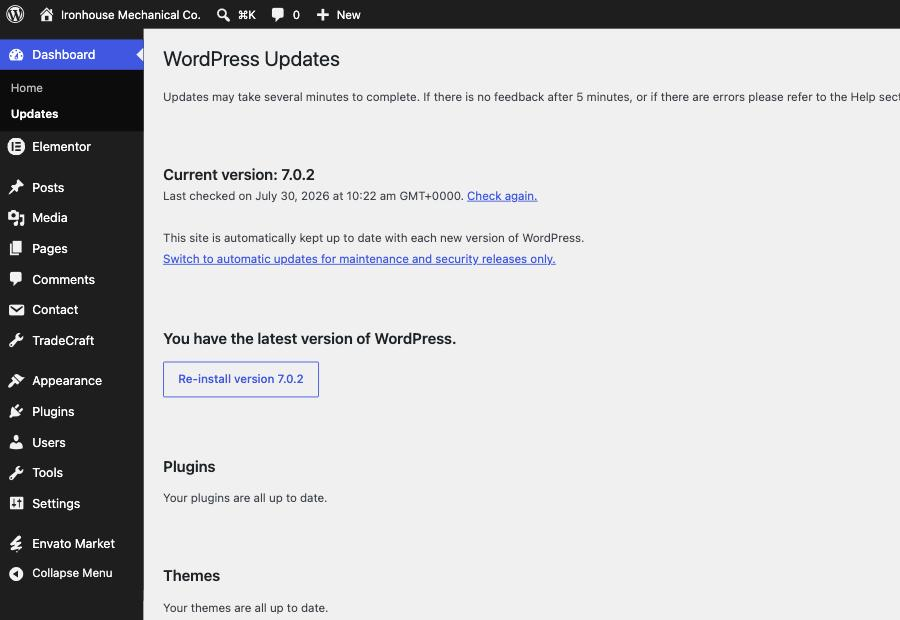
ThemeForest doesn't push automatic updates the way wp.org themes do. When a new version of Fieldcraft is released, you'll find it on your ThemeForest → Downloads page. The easiest way to install updates in-dashboard is the free Envato Market plugin, which connects your Envato purchase code to your site and shows available theme updates directly in Dashboard → Updates.
Updating manually
- Download the latest version from your ThemeForest Downloads page.
- Back up your site (files + database) before updating — always.
- Go to Appearance → Themes, delete the old Fieldcraft theme (not the child theme, and not if it's the active theme — activate the child theme or another theme first if Fieldcraft parent is currently active).
- Upload the new
fieldcraft.zipthe same way you installed it originally (Getting Started → Install). - Re-activate (the child theme, if you use one, or the parent).
Why the child theme protects your customizations
If you made any direct edits to the parent theme's files, updating overwrites them. This is the entire reason the child theme exists: put your customizations there instead, and updating the parent theme never touches them. Customizer settings, menus, widgets and page content are stored in the database, not theme files, so they're never affected by a theme update either way.
What changed
See the Changelog page for the version history, or open
readme.txt in the theme's root folder (== Changelog == section,
standard WordPress readme format) after an update.