/ 07
Blog Setup
Posts page, categories, the post editor, featured images, related posts and comments.
Set up your posts page
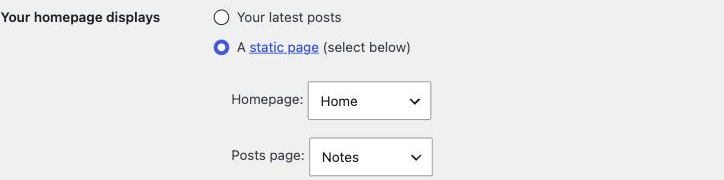
- Create a new page (e.g. "Notes from the Truck" or "Blog") — leave its content empty.
- Go to Settings → Reading and set Posts page to that page.
- Go to Settings → Permalinks and confirm Post name is selected.
Your blog archive uses archive.php with the kicker "FROM THE CAB" above the
archive title — category and tag archives use the same layout automatically.
Categories
Manage categories at Posts → Categories. The demo blog byline format is
CATEGORY · N MIN READ · DATE · BY CREW NAME, BADGE NN — the
"N MIN READ" reading-time estimate is calculated automatically by the theme from the post's word
count, so there's nothing to fill in manually for that part.
- Go to Posts → Categories.
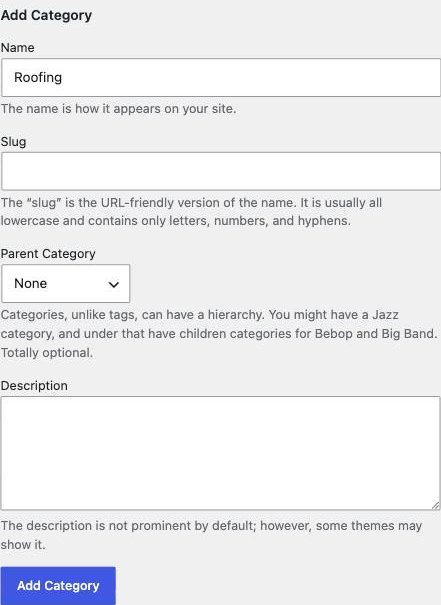
- Type a name (e.g. "Maintenance Tips"), optionally a slug and description, then click Add New Category.
- When writing or editing a post, tick the category in the Categories panel of the editor sidebar — it appears as the first segment of the byline automatically.
Post editor
Fieldcraft uses the standard WordPress post editor without post-format support — there's no Format panel in the editor sidebar, and every post renders with the same archive/single template regardless of content. If you want a visual gallery or pull-quote look inside a post, build it into the post content directly (an image gallery block, a quote block, etc.) rather than relying on a format-based layout.
Featured images
- Open a post in Posts → Add New (or an existing post).
- In the editor sidebar, find the Featured image panel and click Set featured image.
- Choose or upload a landscape photo, at least 1200px wide, then click Set featured image to confirm.

It renders as a full-width feature band at the top of the single-post view, with the post's first category shown as a small stamp overlay.
Comments
Threaded comments are enabled by default (WordPress core setting, Settings → Discussion). Fieldcraft ships its own comment template and comment-reply script, so threaded replies work out of the box with no extra setup.
- To turn comments off site-wide, go to Settings → Discussion and untick Allow people to submit comments on new posts.
- To turn comments off for one post only, open that post, find the Discussion panel in the editor sidebar, and untick Allow comments.
Related posts
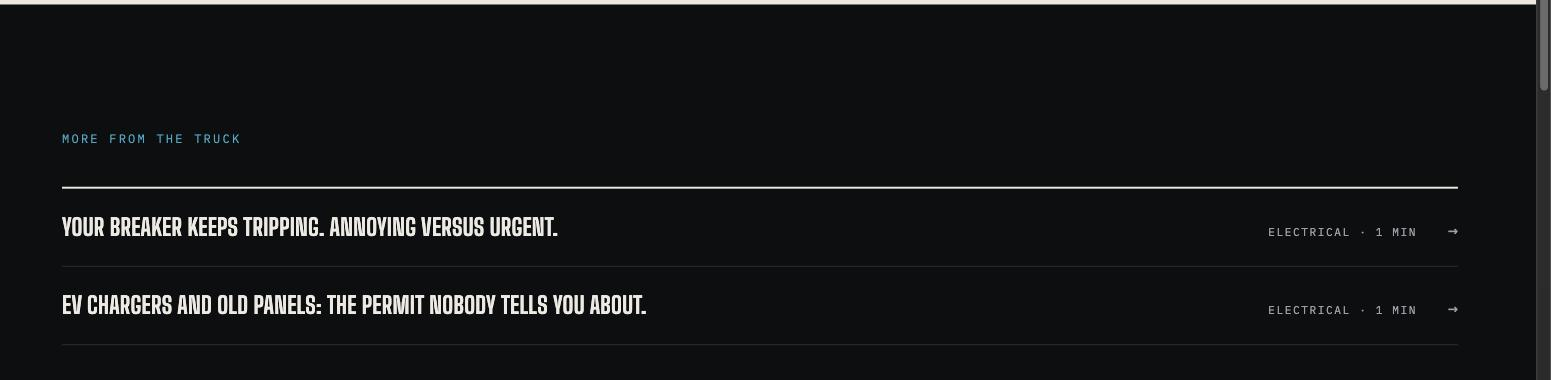
Single posts automatically show a "related notes" rail near the end of the article, pulled from posts sharing the same category — no configuration needed beyond assigning categories to your posts.